


Based on this tutorial, I was able to split rows into separate Worksheets using Microsoft Excel for Mac.
Here’s what to do:
First highlight all the cells in the Worksheet you want to split into multiple Worksheets.
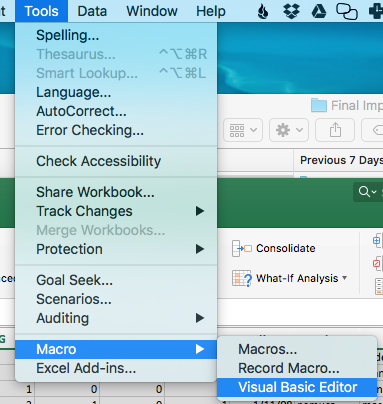
In Excel, go to Tools > Macro > Visual Basic Editor
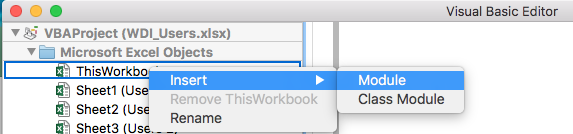
In Visual Basic Editor, expand the Microsoft Excel Objects folder and right-click ThisWorkbook, choose Insert, then Module.
Paste the following code into the Module you just created:
Sub SplitData()
Dim WorkRng As Range
Dim xRow As Range
Dim SplitRow As Integer
Dim xWs As Worksheet
On Error Resume Next
xTitleId = "KutoolsforExcel"
Set WorkRng = Application.Selection
Set WorkRng = Application.InputBox("Range", xTitleId, WorkRng.Address, Type:=8)
SplitRow = Application.InputBox("Split Row Num", xTitleId, 5, Type:=1)
Set xWs = WorkRng.Parent
Set xRow = WorkRng.Rows(1)
Application.ScreenUpdating = False
For i = 1 To WorkRng.Rows.Count Step SplitRow
    resizeCount = SplitRow
    If (WorkRng.Rows.Count - xRow.Row + 1) < SplitRow Then resizeCount = WorkRng.Rows.Count - xRow.Row + 1
    xRow.Resize(resizeCount).Copy
    Application.Worksheets.Add after:=Application.Worksheets(Application.Worksheets.Count)
    Application.ActiveSheet.Range("A1").PasteSpecial
    Set xRow = xRow.Offset(SplitRow)
Next
Application.CutCopyMode = False
Application.ScreenUpdating = True
End Sub
Click the Run Program icon below the code to run it.

A prompt will ask you to select the cells you’d like to split up (default is what you preselected). A second prompt will ask you how many rows per sheet.
Depending on the amount of data, it may take some time, but it will split them up into multiple Worksheets.
That’s it!

Anthony Montalbano
If it's worth doing, it's worth doing right.
Published on: February 16, 2017
Last modified on: December 8, 2021